

Need professional help? Check out the IT services available on Zonar to connect with Experts who can assist you with computer repairs, upgrades, and more!
Is your computer frustratingly slow, constantly lagging, or even giving you the dreaded blue screen? If so, don’t worry—you’re not alone. A sluggish computer can disrupt productivity, cause delays, and result in endless frustration. But the good news is that with a few steps, you can fix your slow computer once and for all. Here’s how.
Check for Malware and Viruses
One of the common reasons your computer slows down is malware or viruses. They can cause your computer to lag, freeze, or even display the blue screen of death (BSOD). To resolve this:
- Install and run antivirus software: A trusted antivirus program can scan your computer for threats and remove malicious software.
- Run a full scan: Make sure to perform a full scan instead of a quick one to ensure nothing is missed.
Uninstall Unnecessary Programs

Over time, your computer accumulates software you might not even remember installing. These programs take up space and use valuable system resources.
- Go to Control Panel > Programs and Features and uninstall programs you no longer use.
- Disable startup programs: Some programs launch at startup, slowing your system. Open Task Manager and go to the Startup tab to disable non-essential ones.
Upgrade Your RAM
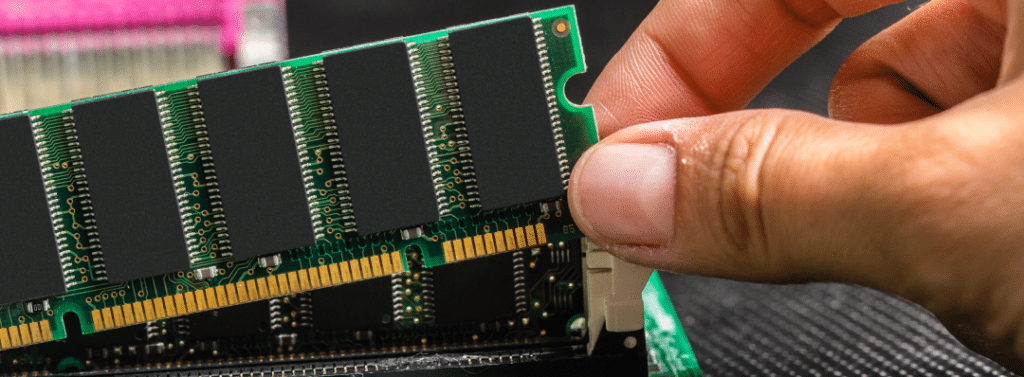
A lack of sufficient RAM (Random Access Memory) can be another culprit for a slow computer, especially if you’re running multiple applications simultaneously.
- Check your system’s RAM usage: Use Task Manager to see how much memory your computer is using.
- Upgrade the RAM: Adding more RAM can significantly improve performance, especially for resource-intensive tasks like gaming or video editing.
Clear Cache and Temporary Files
Your computer stores temporary files from browsing, installations, and other activities. Over time, these files can accumulate and slow down your system.
- Use Disk Cleanup: Windows has a built-in tool called Disk Cleanup to delete temporary files, log files, and cached files.
- Clear your browser cache: In your web browser settings, you can clear the cache, which will free up space and speed up browsing.
Defragment Your Hard Drive
Over time, files on your hard drive can become fragmented, meaning they are scattered in different places. This slows down the read/write process.
- Run Disk Defragmenter: For Windows users, you can use the built-in Disk Defragmenter tool. This organizes fragmented files and helps improve your computer’s speed.
- Switch to SSD: If you’re still using an HDD (Hard Disk Drive), upgrading to an SSD (Solid State Drive) can make a massive difference in performance.
Update Your Software and Drivers
Outdated software and drivers can lead to poor performance, bugs, and even crashes.
- Update your operating system: Ensure your OS is updated with the latest patches and security updates.
- Update drivers: Go to Device Manager and check if any hardware drivers need updates.
Clean Up Your Desktop
Having too many files or shortcuts on your desktop can slow your computer down.
- Organize or delete files: Keep your desktop clutter-free by organizing files into folders or moving them to other locations.
Consider a Fresh Install

If your computer is still slow after trying these steps, it may be time for a fresh installation of your operating system.
- Backup important files: Make sure to back up your files to an external drive or cloud storage.
- Reinstall Windows or macOS: A clean install can remove any software conflicts, malware, or system errors slowing your machine.
Best Solution
A slow computer doesn’t have to be permanent. By following these tips, you can fix a slow, lagging computer once and for all. Whether it’s clearing out unnecessary files, upgrading hardware, or simply optimizing your system, you’ll notice a significant improvement in performance.
Need professional help? Check out the IT services available on Zonar to connect with Experts who can assist you with computer repairs, upgrades, and more! Stay updated with Zonar by connecting with us on social media (Instagram , TikTok and Facebook) for additional tips and insights.


